Pages

31 October 2009

Wordpress Free Host

Okay today i will show how setup wordpress on free hosting like freehostia.com

all free !!! u dont pay any cent, and you can make your free domain also at www.co.cc

follow this Guide how to setup wordpress free host.

then i will show you

1.Login to your Freehostia account


2.Click on Hosted Domain.

3. Type in your New domain that you created with www.co.cc example: ammar0466.co.cc


4.Copy nameserver (NS)... we will need it at www.co.cc setup


5. open your account at www.co.cc then domain >> setup > nameserver > fill in the box with link you copy at step4


Ok We finish at setup domain, Usually we must Wait 48 hour..

6. Then go back to Freehostia, go to Mysql Database.

7.just type your Username and password, then add to mysql database


8.After that Go to Elefante Free Scripts.


9. Choose Wordpress. (yeah finally)

10. Install A pop-up will show. This IS IMPORTANT STAGE just follow what i do.

11.     •    Database prefix = Rename it (wp)
    •    Domain =Choose Your Domain
    •    Path = this is default “/wordpress”, change it to “/”.
    •    Admin user = this is your WordPress login usually (admin)
    •    Admin password = your WordPress password
    •    Confirm Admin password =  password again
    •    Admin mail = Your Email
    •    Weblog title =Type What You Like


10. Click Install and Finish Just Wait Your Domain.

usually your login to wordpress may like this http://ammar0466.co.cc/wp-login.php

Ok Thanks For Reading
How To Add Subtitle On Video With Hardsub(permanent)

Guide

You must have have  1.Virtualdubmod  2.Vobsub (all free) 3.Video 4.Subtitle
Download and extract Virtualdubmod.

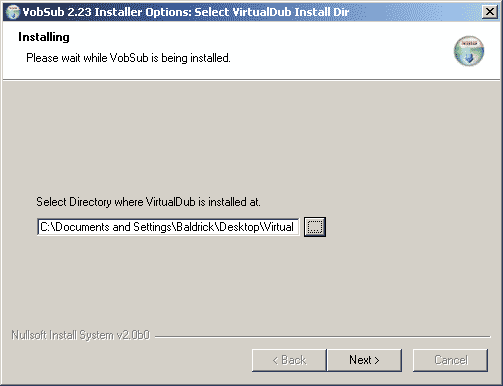
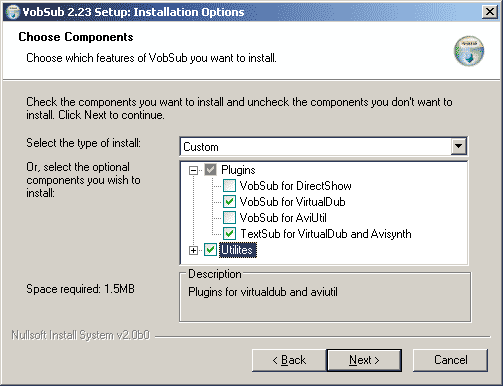
Install Vobsub
When you install VobSub be sure to select VobSub for Virtualdub and TextSub for Virtualdub and AviSynth under Plugins:


Find the Virtualdubmod directory:


Run Virtualdubmod then open your video. 

(If a message popups that VBR audio stream detected just select NO)
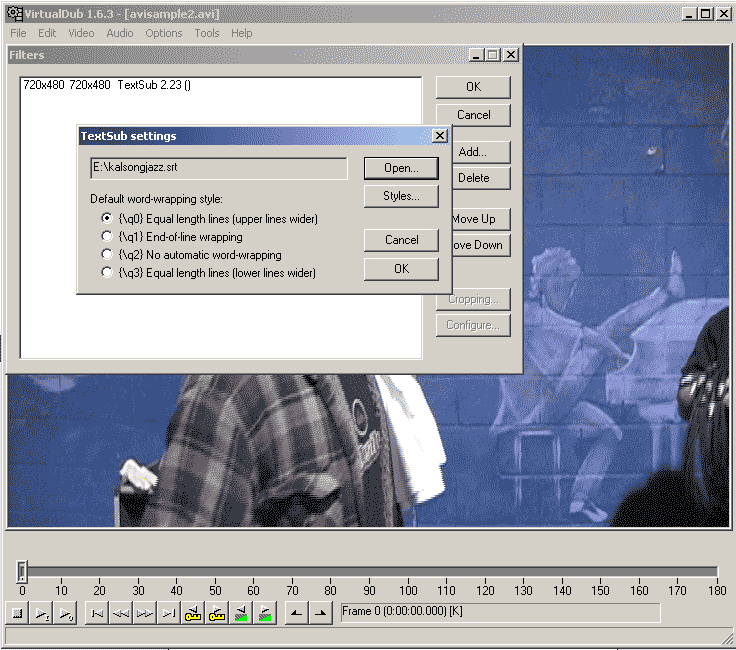
Add the TextSub filter under Video->Filters.
Open the srt, sub(text), smi, ssa subtitle.
(If you have an idx/sub/ifo subtitle add the VobSub filter intead.)


Set Video->Full Processing.
Set Video->Compression and select Divx or Xvid. Install DivX Codec or XviD Codec if you can't see the in the compression list.

And last save as a new AVI, File->Save AVI.
(If you want to convert directly to a VCD, SVCD or DVD MPEG2 frameserve to an mpeg encoder, read this guide.)


Problems
I can't install Vobsub. Vobsub wont work.
Try use latest VSFilter instead. Install it and then copy the VSFilter.dll to the plugins folder under the Virtualdubmod folder and rename it to VSFilter.vdf. Like c:\program files\virtualdubmod\plugins\VSFilter.vdf

VBR audio stream detected
Just select NO.

Can't see any DivX or XviD in the compression list
Install the DivX Codec or Xvid Codec.

Can't open the video
Identify the video codec with Gspot or avicodec. Then download and install that codec, usually DivX Codec or XviD Codec or try ffdshow(and enable VFW decoding)

The source image format is not acceptable (error code -2). Or other problems.
Read http://forums.virtualdub.org/index.php?act=ST&f=4&t=6608&

linkwithin

Related Posts Plugin for WordPress, Blogger...